A tour of AmadeusShare
Twelve stops through the desktop app, from signing in to backing up your work on your own USB drive.
Diese Seite auf Deutsch: App-Rundgang
The pictures show Northlight Studio, an example workspace: Mia, a singer-songwriter, works on her album with her producer Leo and her mix engineer Sara. Everything you see works the same way in your own workspace. Every stop links to the part of the user guide that explains it in detail.
Sign in
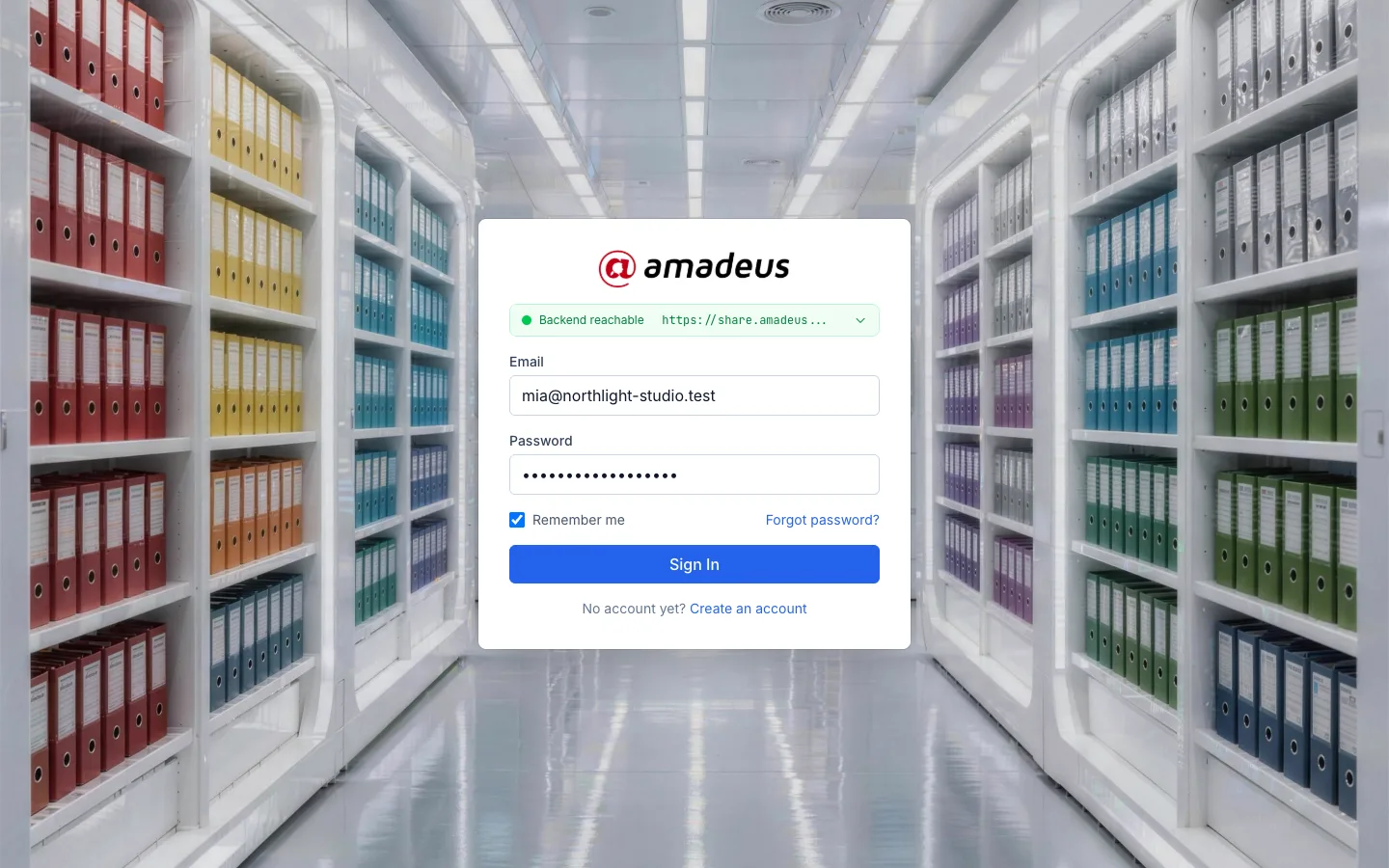
Open the app and sign in with your e-mail address and password. The bar at the top shows whether the server can be reached. New here? Create an account gives you a workspace of your own. If you were invited, the invitation link brings you straight into your team's workspace.
The dashboard
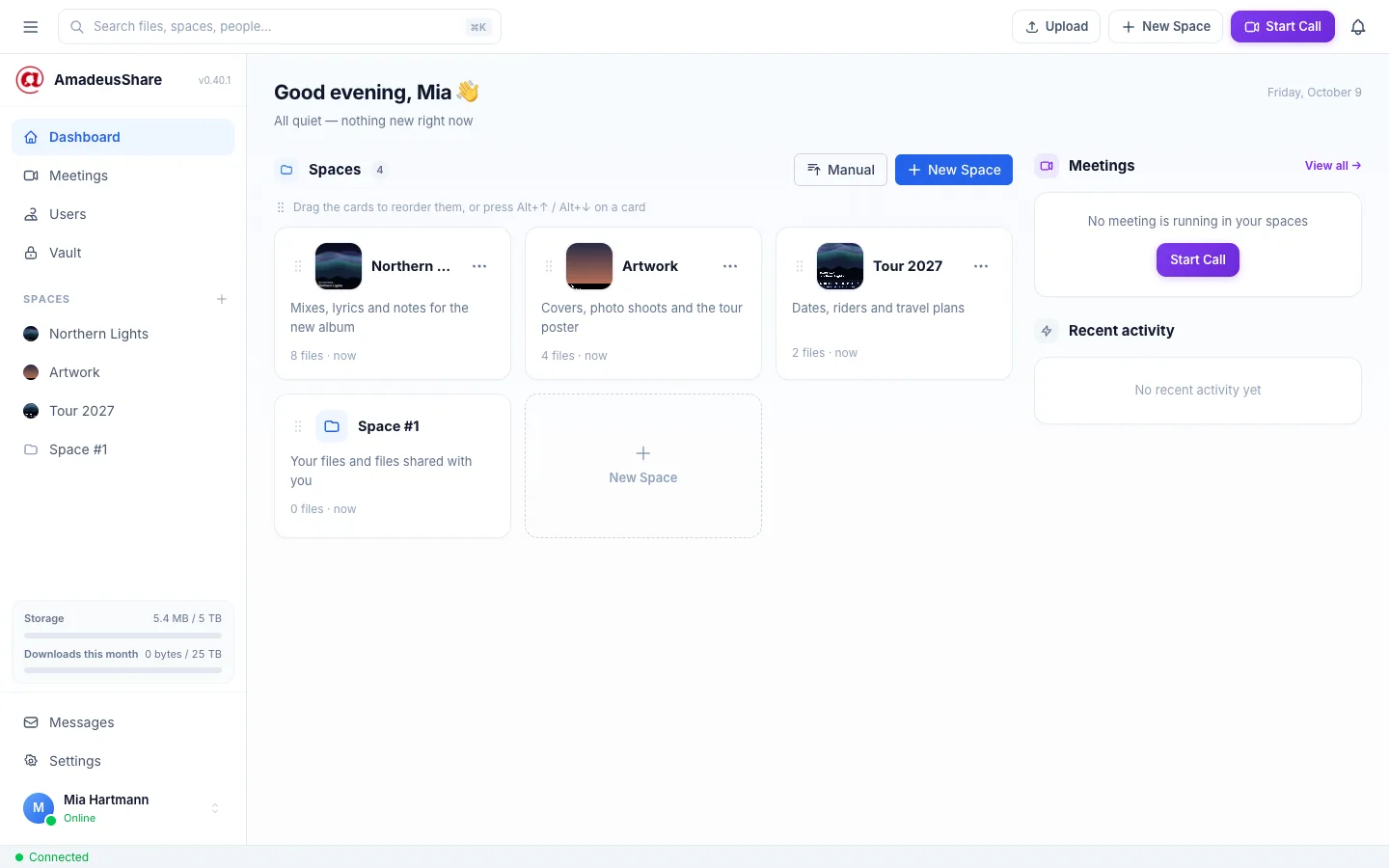
Your starting point. Every space of your workspace is a card with its cover picture; the sidebar lists the same spaces for quick access. On the right: meetings that are running or planned, and what happened recently. The top bar is always there: the search, Upload, New Space, Start Call and your notifications.
A space and its files
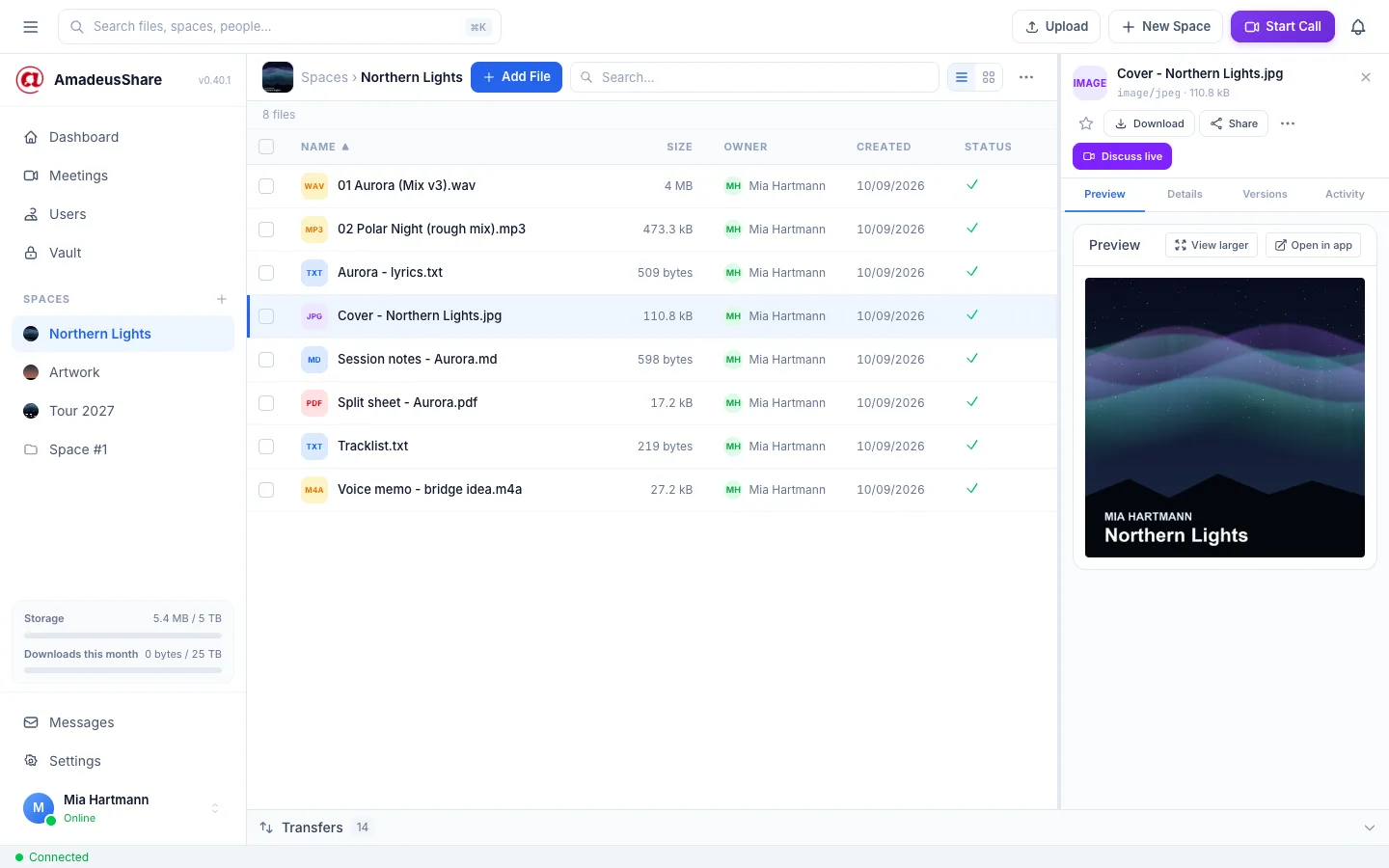
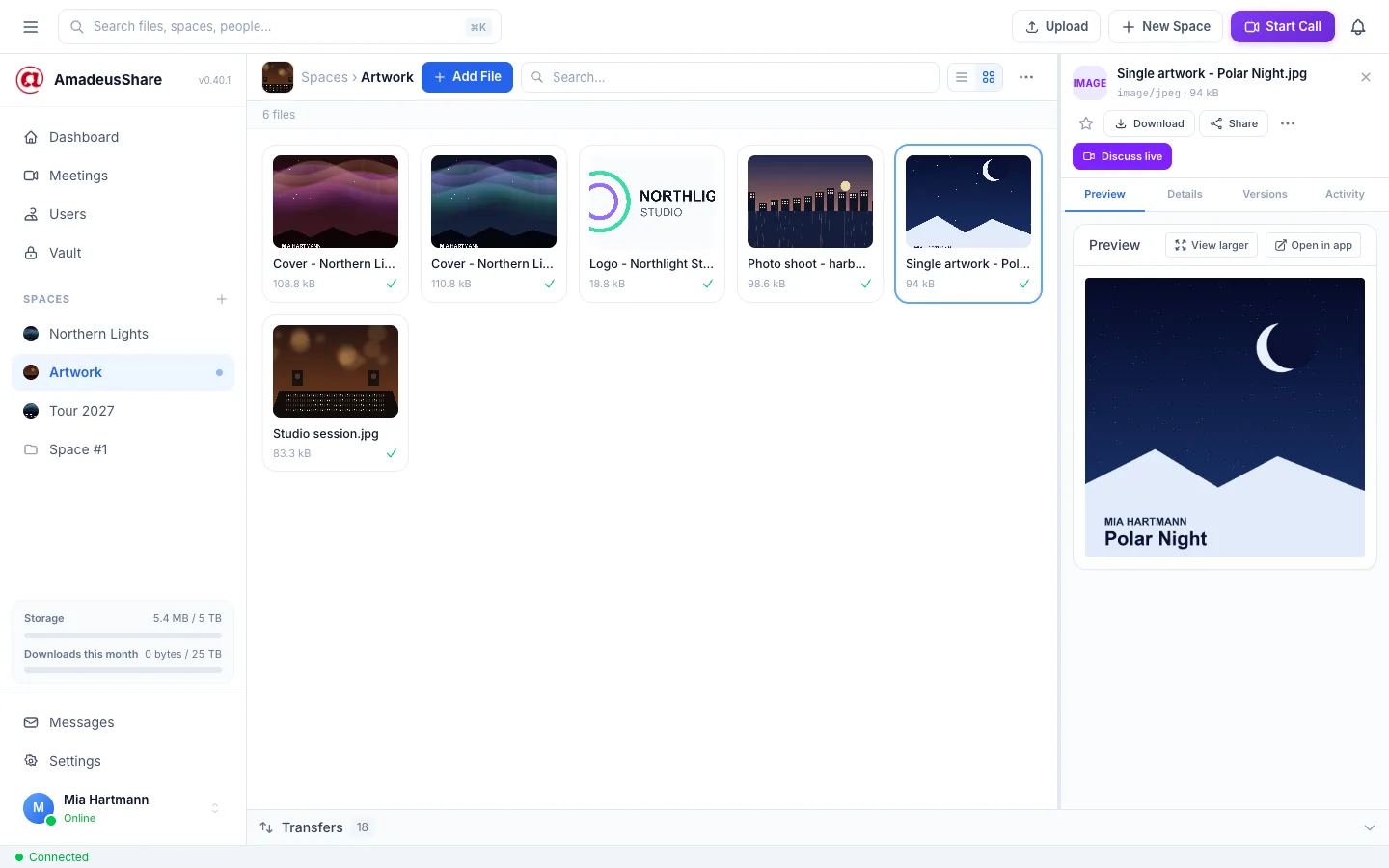
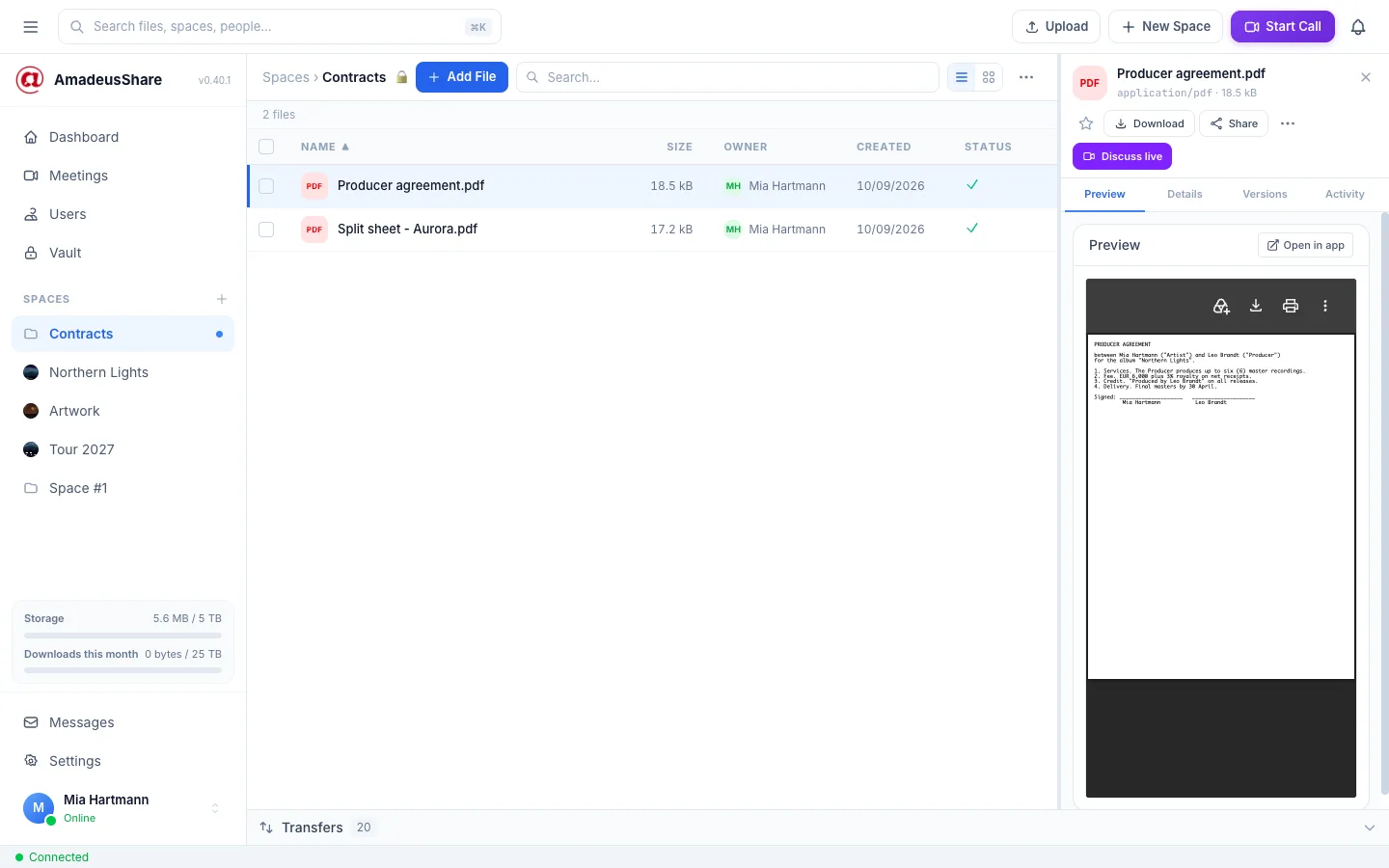
A space holds the files of a project. Click a file and the detail panel opens on the right: a preview (pictures, audio, video, PDFs and text play or show right there), Download, Share and more under ⋯. A green check means the file is synced with the server.
Pictures, large
Switch a space to the grid view for artwork and photos. View larger — or a click on the preview — shows a picture over the whole window; zoom with + and −, or by pinching on a trackpad.

Everything about a file
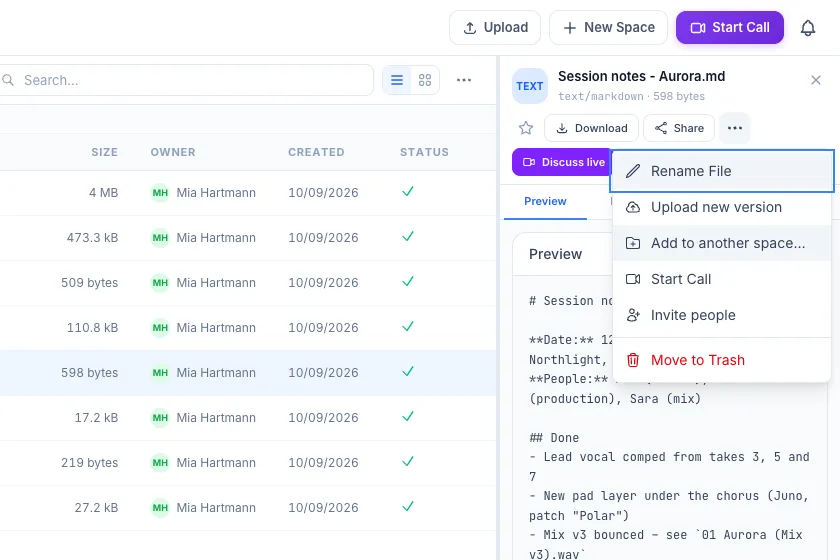
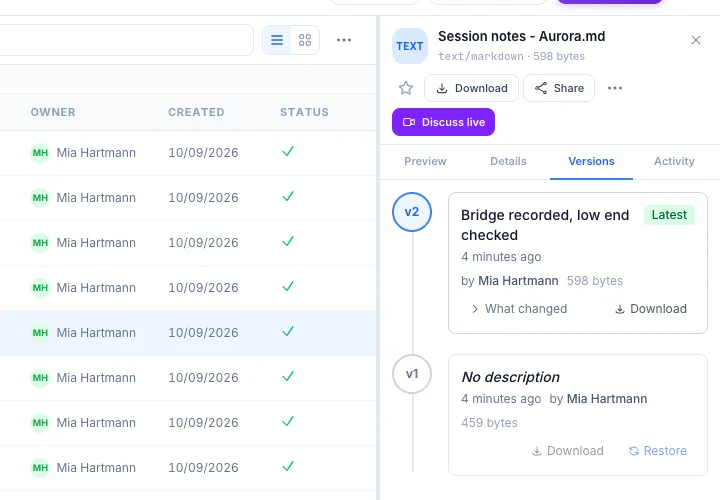
The ⋯ menu of a file holds what you need less often: rename it, upload a new version, add it to another space, use a picture as the space's cover, start a call about it. Move to Trash comes last. Every change keeps the old content: the Versions tab lists each version with its note, and an older one can be restored.
Share a file
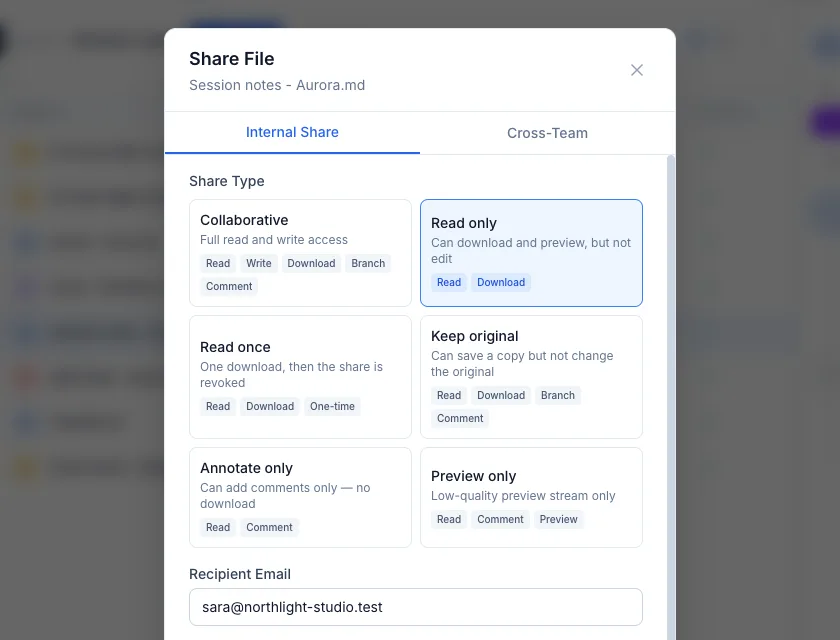
Share gives a file to a person with exactly the rights you choose: to work on it together, only to read and download it, to download it once, to comment on it, or only to see a preview. A share can expire, and you can limit the number of downloads.
Private spaces
For contracts, unreleased masters or anything sensitive: a private space is end-to-end encrypted. Its files are encrypted on your computer before they leave it, and only the members of the space can read them — not even the server can. The lock next to the name shows it.
Find anything
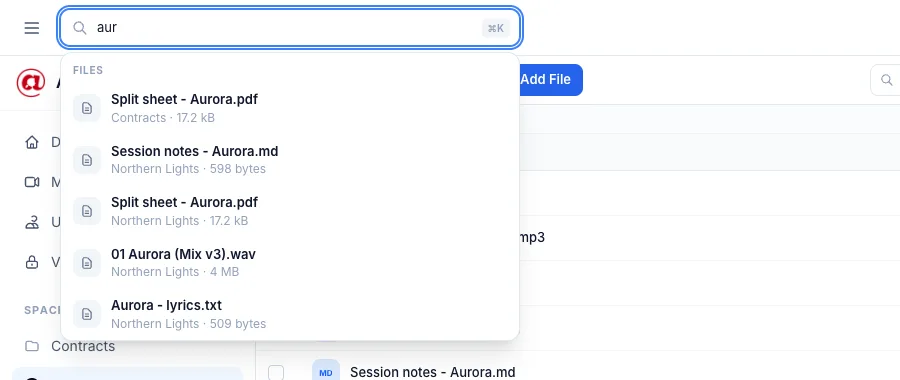
The search at the top (⌘ K on a Mac, Ctrl + K on Windows and Linux) finds spaces, files, people — and the app's own commands: type “settings” or “new space”.
Meetings and calls
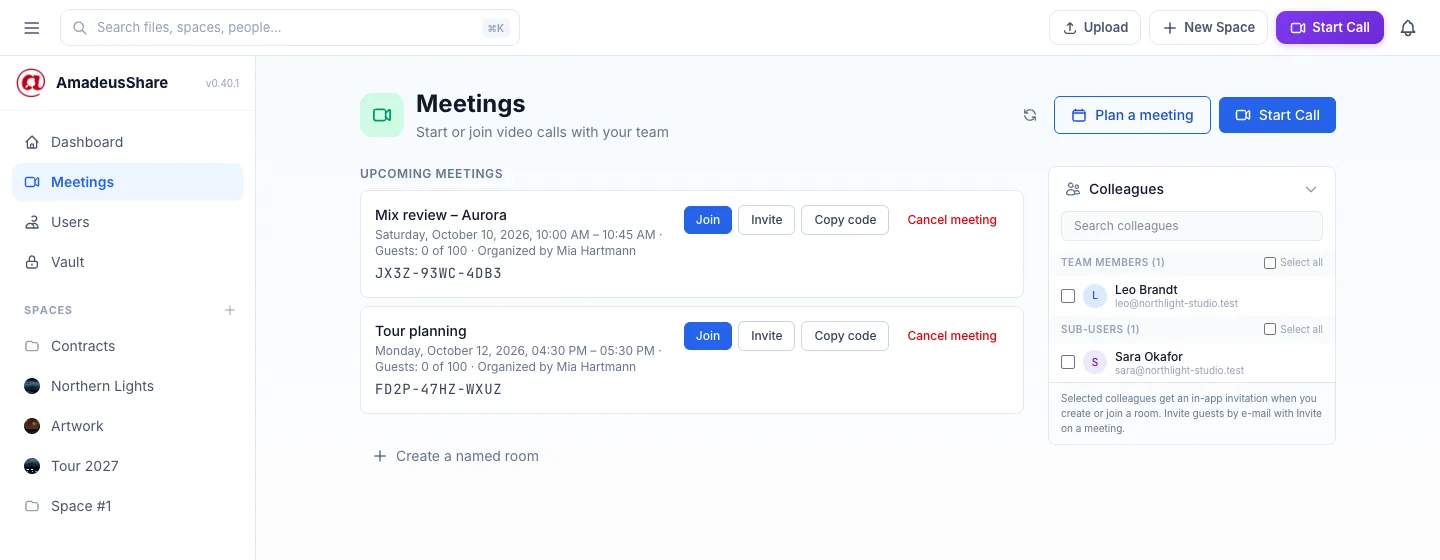
Talk it through without leaving the app: Start Call opens a video call right away; Plan a meeting schedules one with a call code you can give to people outside your team. In a call you can share your screen, chat and send pictures; go back to your files and the call keeps running in a bar at the top.
Your team
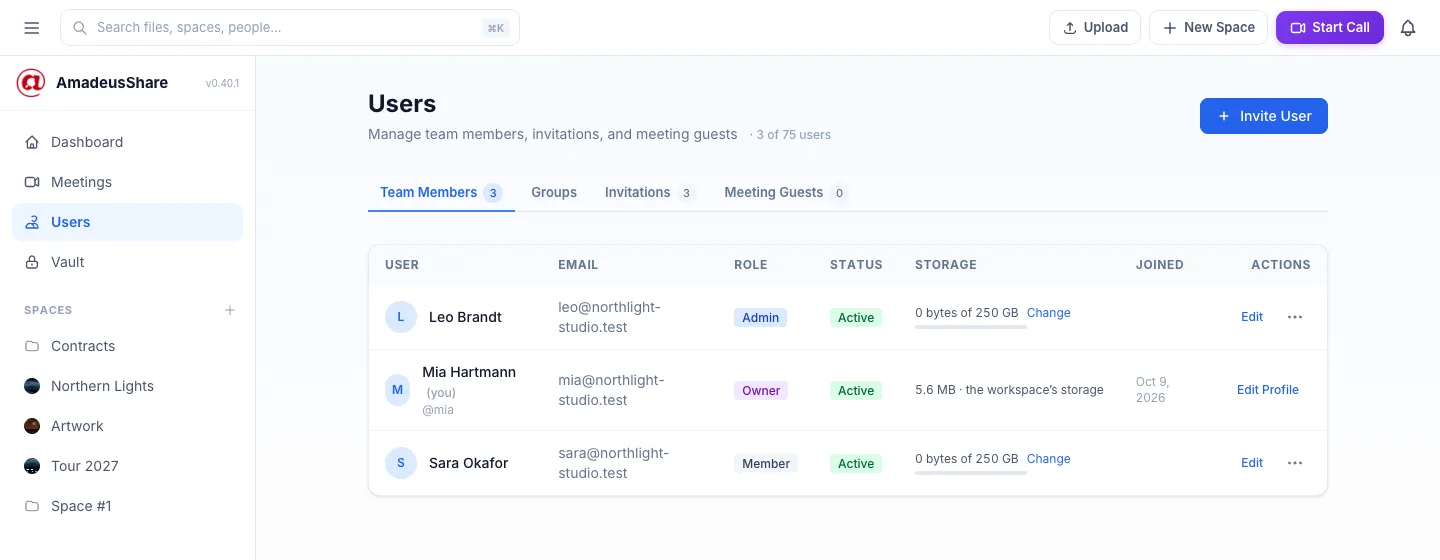
The owner and the administrators manage the team under Users: invite people, give them a role, set how much storage each may use, and form groups. Pending invitations and meeting guests have tabs of their own.
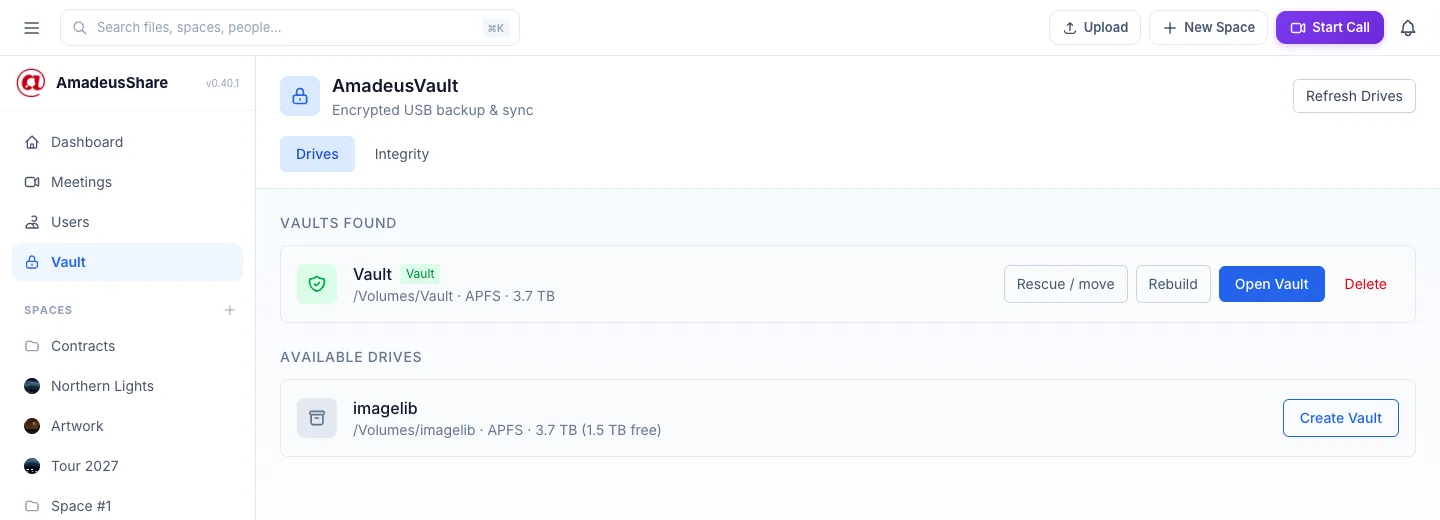
The encrypted USB vault
Keep a copy of your spaces on a USB drive that only you hold. The vault is encrypted with your own passphrase, keeps itself in sync while it is connected, checks every file, and brings files back onto a computer — or into a new vault when a drive gets old.
Settings
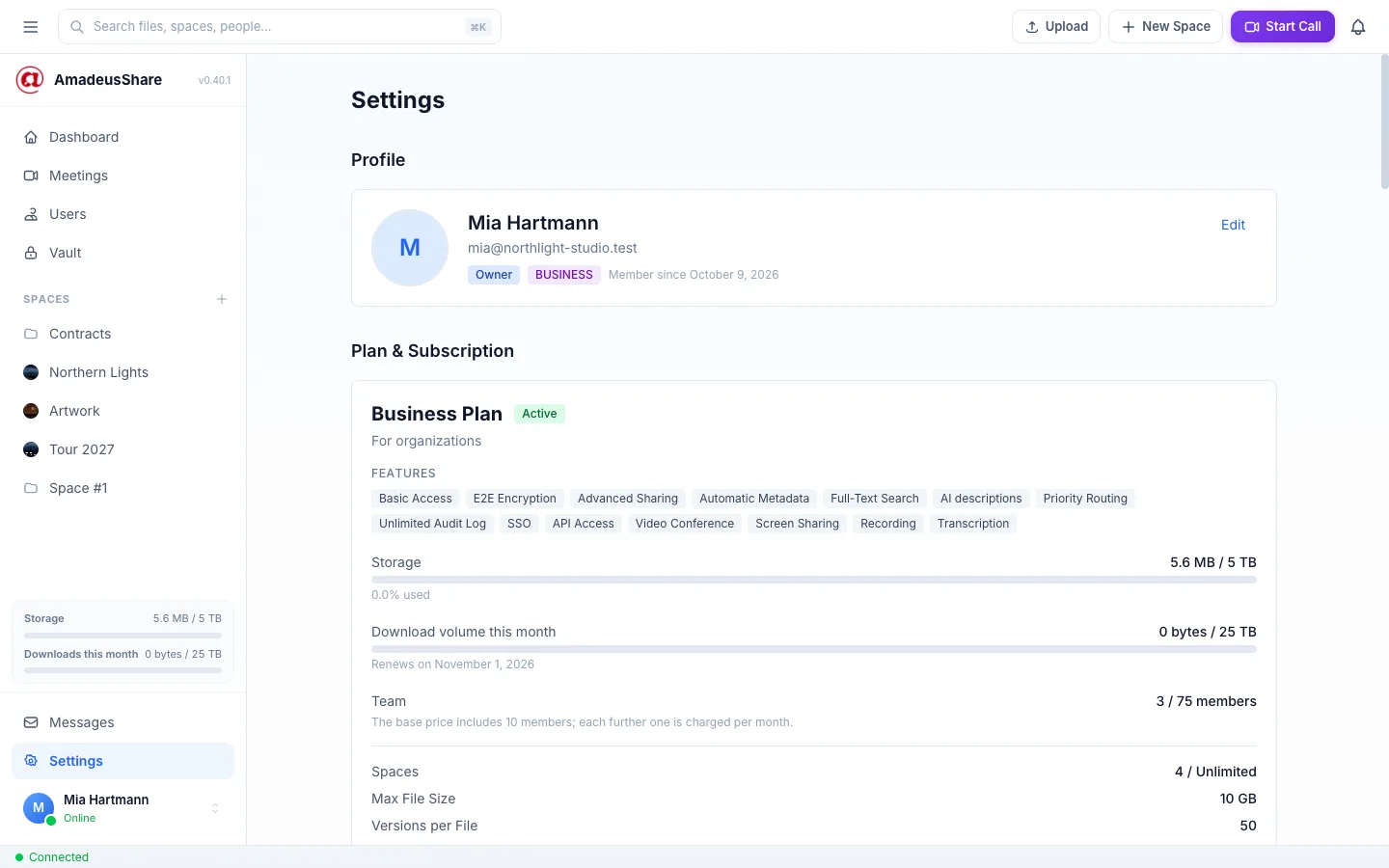
Your profile, your plan and how much of it you use, the language and theme, end-to-end encryption, two-step verification, your password and e-mail address, and a copy of your data — all in Settings.